
Whether you’re a graphic designer, marketing agency or freelancer, Canva offers a way to create time-saving, on-brand templates for your business.
Now more than ever, B2B and B2C marketers are facing increased pressure to create a wide range of visuals to convey their marketing messages. The number of documents now expected to be professionally designed and look on-brand has increased exponentially.
Marketers’ responsibilities have increased ten-fold over the past decade. They are expected to post on-brand, designed social posts on every platform, including text-based, video, and photo-based formats. Feed posts and stories need to be designed, scheduled, and published daily.
Step 1 – Sign Up
Signing up to Canva is easy and can be done in 5 minutes. You can choose Canva (free) or Canva Pro. We’d recommend the Canva Pro, personally.
Sign up by following the link here.
How can I sign up to Canva?
Signing up to Canva is easy; there are two versions and each one depends on your usage. Personally, we love Canva Pro (currently around £10 per month) as it provides you with millions of graphics, photos and templates which will save you hours every month.
You can sign up to Canva Pro here.
What are the benefits of Canva Pro?
The Canva Pro subscription unlocks endless possibilities for individuals, with premium features like Brand Kit, Premium Templates, Magic Resize, 100+ million stock photos, videos, audio, and more.
Build your brand with Pro
As a solopreneur or small business owner, you can set up your Brand Kit and apply it to every template to maintain brand consistency – no design skills necessary.
One-click Background Remover
No need to painstakingly edit your photos. With one click, image backgrounds are easily removed.
Design once and resize instantly
Use Magic Resize to create one design and easily resize it to any format, then apply it across all your marketing channels. It’s the perfect time saver for solopreneurs.
Schedule posts ahead of time
Effortlessly organize your content calendar. Load up your social content ahead of time and schedule the exact times you want to post on Facebook, LinkedIn, and more.
Features you’ll love:
- 100+ million premium stock photos, videos, audio and graphics
- Unlimited features, folders and premium content
- 610,000 premium and free templates with new designs daily
- Establish your brand’s visual identity with logos, colours and fonts with up to 100 Brand Kits
- Create dedicated folders for specific projects
- Resize designs infinitely with Magic Resize
- Remove image backgrounds instantly with Background Remover
- Schedule social media content to 8 platforms
- Cloud storage (1TB)
- 24/7 Customer Support
Sign up by following the link here.
Step 2 – Navigate the Homepage
Canva is an industry leader when it comes to getting beginners into marketing. You don’t need a degree to be in control of your company’s marketing efforts. Luckily, Canva has a video tutorial to show you how to set up your Canva account.
It covers:
- Welcome and introduction
- Canva is made for you
- The first page you’ll see whenever you sign into Canva
- The different menus on the home page
You can sign up to the Canva for Beginners course here.
Step 3 – Set Up Your Brand Kit
Brand Kits are only available with Canva Pro accounts, and gives you a fast-track way to streamline your colours, fonts and logos to make it easier for you to design your marketing.
Canva has a some brilliant video tutorials so you can follow along.
You can find the full list of Brand Kit videos here.
Step 4 – Find templates to suit your brand
Canva has more than 610,000 free and pro templates so you’re bound to find something that aligns with your brand.
The great thing about Canva is that new templates are added every day. It’s easy to search for keywords like ‘sale’, ‘Christmas’ or ‘offer’ which you can then customise with your Brand Kit.
Step 5 – Resize to fit each social media platform
It’s important to have the correct size images / videos for each social media platform so that your channels look thought-through and authentic.
Luckily, there’s a Magic Resize on Canva that’ll save you time and effort. Unsure what sizes you need? Check out Hootsuite’s blog post ‘2023 Social Media Image Sizes for All Networks‘.
Step 5 – download your designs
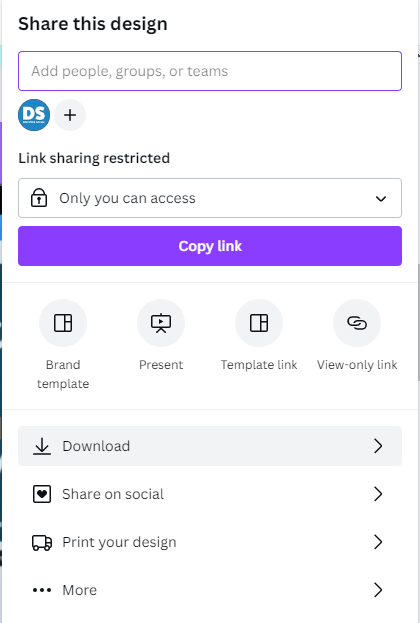
On your computer:
- On the editor menu bar, click Share.
- Click Download.
- On the dropdown, choose a file type for your download. Learn more about the supported download file types.
- If your design has multiple pages, select the pages you want to download from the dropdown, and click Done.
- Click Download.
- If your design has premium elements, click ••• (beside Try Canva for Pro/Teams for free) and then on Purchase Pro Content Licence. Select your preferred payment method and click Pay and Download to finish.
You can find your design in your device’s assigned download folder.
On your mobile device:
- Tap the Export icon from the editor menu bar.
- Tap Download.
- On the dropdown, choose a file type for your download. Learn more about the supported download file types.
- If your design has multiple pages, select the pages you want to download from the dropdown, and tap Done.
- Tap Download.
- If your design has premium elements, tap ••• (beside Try Canva for Pro/Teams for free) and then on Purchase Pro Content Licence. Select the amount of Canva credits you want to buy and tap Pay and Download to finish.
- Select where to save or share your design. If this step doesn’t appear, you can find your design in your device’s photo gallery.
Ready to sign up to Canva?
Start your free trial, click the image below and start your Canva journey today.
This blog post contains affiliate links.
 Discover Social